
Oval Button Badge File Setup: Bleed, Shape, and Finish
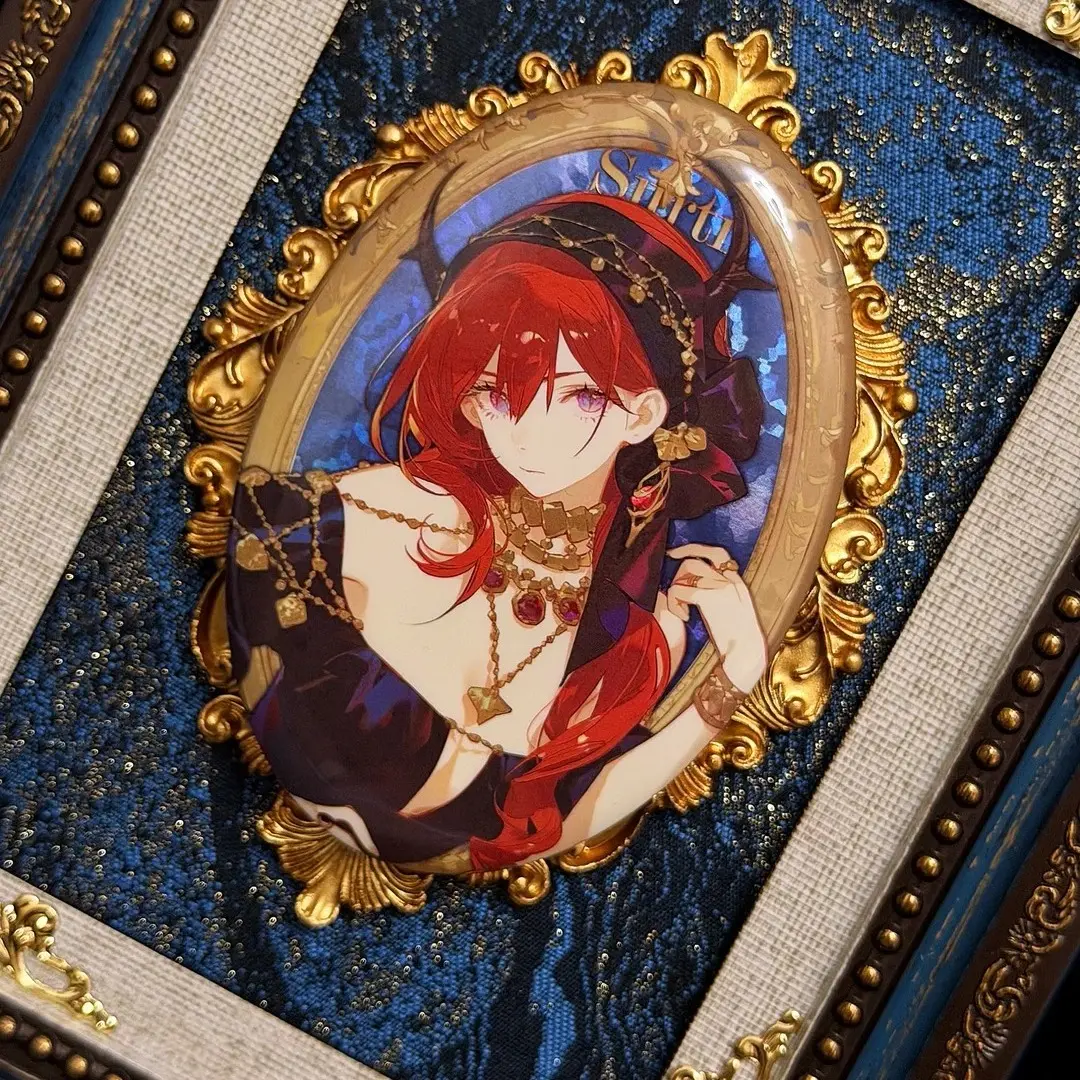
Oval Button Badge File Setup: Bleed, Shape, and Finish
The oval die-cut changes every margin decision — here's how to get it right.
TL;DR
Oval button badges from Popecho come in two sizes (53×73 mm and 63×89 mm) and use a 4-color 15K print line tuned for anime and cel-shaded art. The single most consequential decision is filling the full 3 mm bleed area — the oval outline isn't forgiving of colour blocks that stop short. Open your design in Popecho's onsite editor, confirm the oval cut path, choose your laminate finish before submitting, and order one unit as a sample before scaling.
What This Subtype Actually Demands
Most creators arrive at oval badge setup thinking it works like a round button badge — and that assumption causes problems immediately. The oval die-cut press follows a non-standard outline: the aspect ratio differs at each size (53×73 mm and 63×89 mm), and any margin decision you made for a round badge needs to be re-evaluated for the elongated perimeter.
The print line here is a 4-color indigo 15K device with a manga-optimised colour profile. That matters because this badge is built for flat-colour and cel-shaded artwork — the kind of vibrant, high-contrast art typical of VTuber and anime fan merch. It is not a photo-realism workflow. If your source file has very light tints, neon values, or complex gradient tubes, plan for colour shift and order a proof before committing volume.
Laminate finish is locked at the order stage. Eleven options are available — matte through eleven holographic variants — and whichever you choose bonds permanently. That choice affects how your line art reads on the finished surface.
Setting Up the Artwork
Canvas dimensions are set per size. For the small badge (53×73 mm finished), build the canvas at 59×81 mm — that is 697×957 px at 300 DPI. For the large (63×89 mm finished), build at 77×107 mm — 909×1264 px at 300 DPI. Both are RGB, and the 3 mm bleed is already factored into those canvas dimensions.
Popecho's onsite editor loads the oval die-cut outline automatically for this product. When you open either size variant, the editor shows the exact cut path and the safe zone boundary — you design inside the oval outline rather than guessing from a spec sheet. There is a template catalog with 16 starting points available inside the editor, which is useful when you want to see how a layout sits before placing your own artwork over it.
One critical file behaviour: the entire bleed area — right to the outer red border — must be filled with artwork or background colour. Do not use a colour block that stops at the finished cut line. The oval press will expose that gap as a white or mismatched edge on the physical badge. Also confirm your file is saved in RGB before uploading. CMYK files trigger automatic saturation boosting at print time, and the resulting colour shift is not covered under after-sales.
Accepted formats are PNG or JPG, maximum 3 MB per file.
Surface and Production Decisions
The laminate selection changes the finished product more than most creators expect. Matte and tactile-soft finishes reduce glare and suit line-heavy artwork. Hi-gloss and anti-scratch hi-gloss maximise colour vibrancy and are the safe default for cel-shaded character art. Holographic films — star, mini heart, fireworks, starfield, diagonal-pillar, shattered glass, broken-glass sparkle — add shimmer, but they carry a real trade-off: fine lines and very pale linework can appear disconnected or disappear entirely under certain holo films. If your design relies on thin outlines for detail, test on a matte or gloss finish first.
The tinplate shell with pin back has a fixed 6.2 mm depth profile — artwork only touches the printed face. Popecho's production window is approximately 15 days, and MOQ is 1 unit. That low MOQ is genuinely useful here: order a single sample in your chosen finish before committing to a set. Minor surface micro-imperfections on the gloss face are noted as an expected production characteristic, not a defect — if surface perfection is critical, confirm on a physical sample before scaling.
The manga-optimised colour processing is a specific mode on this print line. It is not a filter you apply — it runs automatically and targets the vibrant flat-colour gamut. Design in sRGB and let the press do its job.
What Trips Creators Up
Bleed that stops at the cut line. The most common file error. Creators fill to the finished badge boundary and leave the 3 mm bleed zone empty. The oval press then exposes a white ring around the edge. Extend every background colour and pattern to the full canvas edge.
CMYK files uploaded without checking. If you export from Photoshop or Illustrator without confirming colour mode, a CMYK file enters the upload flow and the RIP conversion boosts saturation automatically. The cart preview may look off — correct the file's colour mode to RGB and resubmit before placing the order.
Fine linework chosen with a holo laminate. Very thin lines at low opacity interact badly with holographic films. The lines may read as broken or invisible on the finished badge. Either increase line weight, raise opacity, or switch to a matte or gloss finish for line-art-dominant designs.
Extreme tints and neon values outside sRGB. Channel values below 20 and fluorescent colours shift noticeably in print, and those outcomes sit outside after-sales quality claims. Check your file's colour values before uploading and, for any batch order, request a pre-production proof on a single unit first.