
Square Holographic Badge: Mastering the White Ink Layer
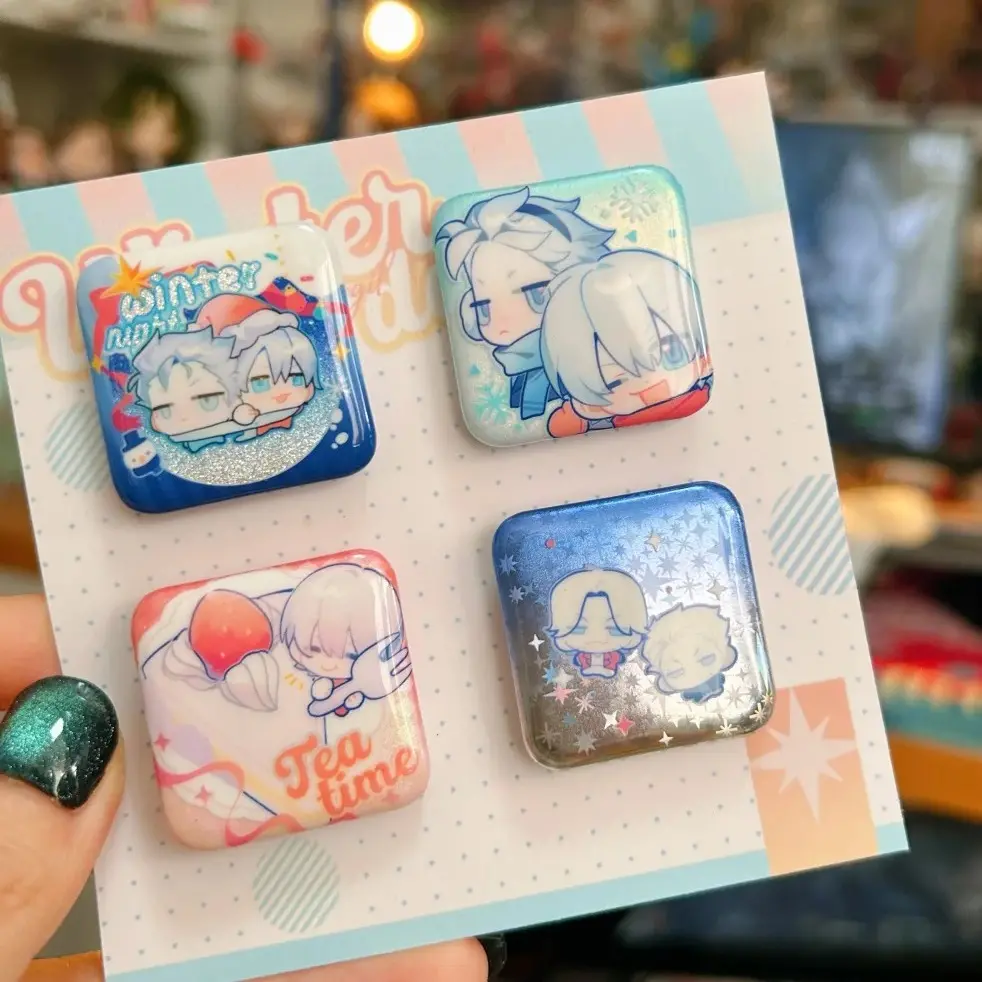
Square Holographic Badge: Mastering the White Ink Layer
The double-flash mechanic lives or dies on one layer — here is how to set it up right.
TL;DR
Popecho's square holographic pin badge runs a true double-flash structure: both the printed face film and the backing layer carry independent holographic film, so the badge shifts differently at every angle. The white ink layer is the primary creative control — it decides how much of each flash surface bleeds through your artwork. Get that layer wrong and the image floats washed out over the base. Set it up in Popecho's onsite editor, proof a single unit first, then scale.
What This Subtype Actually Demands
Most holographic badges use a single flash layer behind the print. This square badge runs two independent holographic films — one laminated to the printed face, one sitting in the backing — so the iridescent shift you see from the left is not the same shift you see from the right. That layered structure is the entire point of the product, and it creates one design constraint that overrides everything else: you are not just placing art on a surface, you are deciding how much of two separate flash layers your art reveals.
The white ink layer is the lever for that decision. It controls opacity zone by zone — full white behind areas you want opaque and vivid, reduced or absent behind areas where you want the holographic base to read through. Every other file-prep step (canvas size, bleed, resolution) is standard badge work. White ink placement is specific to this subtype and cannot be fixed after printing.
Setting Up the Artwork
Open the product in Popecho's onsite editor and the die-cut boundary and safe-zone overlay snap into place for your chosen size — 30×30 mm or 50×50 mm — without manual calculation. The total canvas is 60×61 mm; the 5 mm bleed on every edge is already marked, so extend your background art to the canvas boundary rather than the finished cut line.
Work at 300 DPI and keep the file in RGB. The 7-color UV workflow uses RGB directly — converting to CMYK before upload narrows the color gamut and undercuts the manga-tone accuracy this print system is calibrated for.
For the white ink layer, submit a separate layer or channel in your PSD. This is not optional: a flat JPG or PNG with no white ink layer means your artwork prints with no opacity control, and the image will appear semi-transparent or muted against whichever flash base you chose. Inside Popecho's editor, the white ink layer surface is loaded alongside your artwork view, so you can paint opacity coverage before finalizing the file. The editor also includes a template catalog with starting layouts — a practical shortcut if you are building your first badge design from scratch.
Surface and Production Decisions
The holographic base pattern you select changes the perceived color of every semi-transparent area in your artwork. Rainbow and laser bases push cool blue-green tones through the print; flame and red iridescent bases shift warm. If your character palette is warm-toned, a cool flash base showing through mid-tones will fight the artwork rather than enhance it. Preview your white ink mask against the specific base pattern you intend to order — not just any holographic swatch.
The PET anti-scratch laminate is applied as standard across all units. It protects the print face and adds a light sheen. You cannot substitute a matte laminate in this product line, so if your design relies on a completely flat surface read, account for the gloss interaction with the holographic layer underneath.
The 7-color UV print is calibrated for manga and anime color profiles. Photographic or heavily desaturated artwork can render differently than the screen preview suggests. Order a single-piece proof before committing to a full production run — Popecho's MOQ is 1 unit, which exists precisely for this step.
What Trips Creators Up
Skipping the white ink layer entirely. This is the most common error. Without a deliberate white ink mask, the artwork floats transparently over the holographic base and colors appear washed out. The fix is a separate PSD layer with white coverage mapped to every area you want fully opaque.
Misaligned white ink coverage on edge details. Fine lines, hair strands, and outline art often get a uniform white fill applied, which kills the intended flash interaction at the edges. Instead, paint full white only behind solid fill areas and reduce or remove white ink behind intentional transparent zones.
Content placed in the bleed zone. The finished cut is 50×50 mm but the canvas is 60×61 mm. Text or key facial features placed between the safe-zone boundary and the cut line will be trimmed. Keep critical detail inside the inner safe boundary that Popecho's editor marks.
Choosing the flash base pattern last. The base pattern is not a cosmetic afterthought — it actively changes how every semi-transparent pixel in your artwork reads under light. Lock in your flash base pattern before finalizing the white ink layer, not after.