
Acrylic Brick File Setup: Dual-Layer vs. Single-Layer
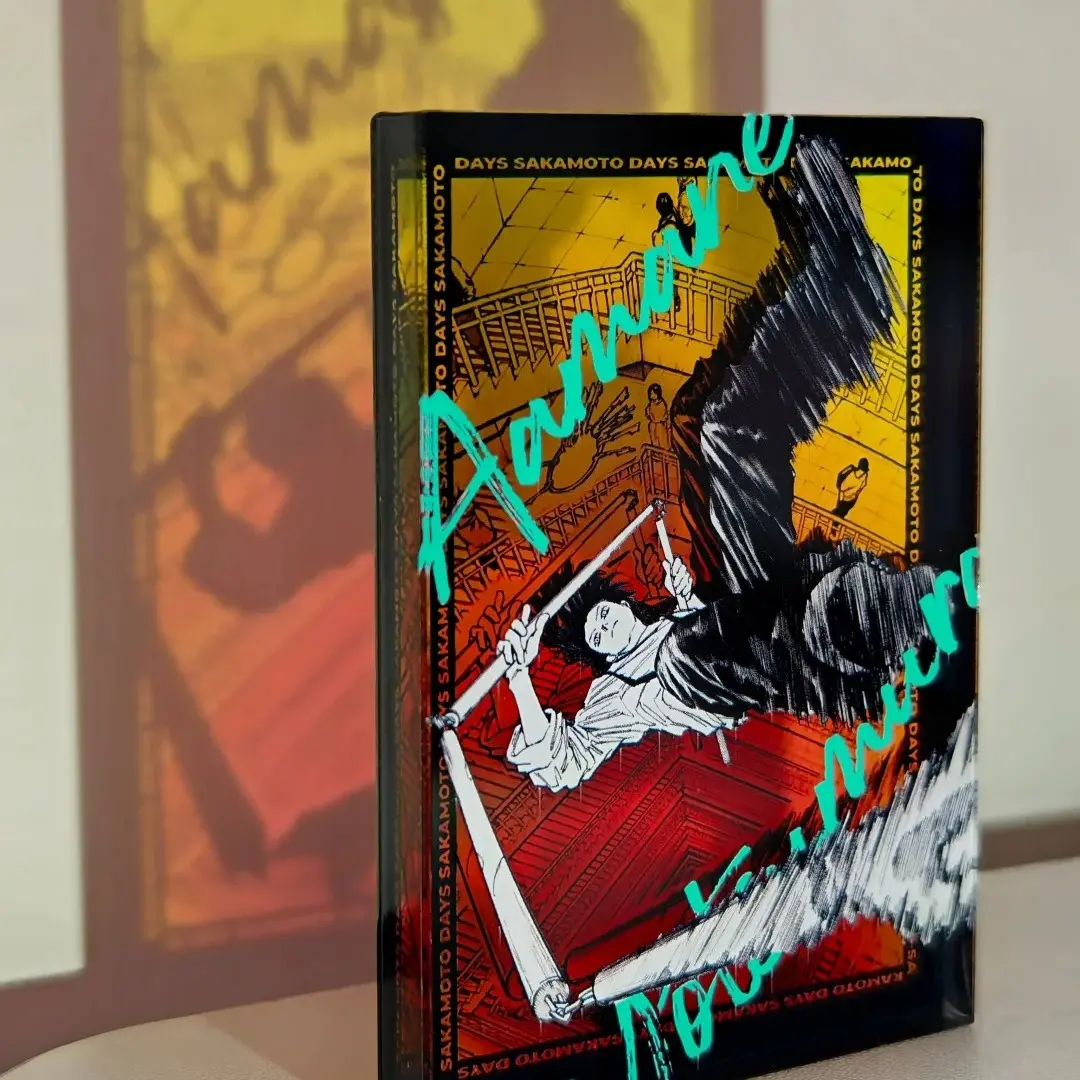
Acrylic Brick File Setup: Dual-Layer vs. Single-Layer
White ink, contrast boost, and the double-view editor — what changes between both builds.
TL;DR
Acrylic bricks are 15 mm thick CNC-cut rectangular displays, available in 10×15 cm and 10×10 cm, printed either as a dual-layer sandwich or a single-layer surface build. The single most critical decision is which print variant you choose — it controls how white ink is used, how your colours read through clear acrylic, and how you set up each surface in Popecho's editor. Proof one unit before scaling any run where colour accuracy matters.
What This Subtype Actually Demands
Acrylic bricks are not standees. At 15 mm thick, they stand unaided on any flat surface — no base slot, no support arm — and that mass changes what the product asks of your artwork. The clear substrate transmits and refracts light, so colours read differently than they do on paper or thin acrylic. Dual-layer builds sandwich the print between two acrylic faces, adding depth and scratch protection but putting 15 mm of clear material between the viewer and the ink. Single-layer builds sit the print directly on one face, exposed, with a white ink backing providing the opacity the clear substrate cannot.
For K-pop or VTuber birthday campaigns — the context this format was built for — treat the 10×15 cm portrait orientation as your primary canvas and the 10×10 cm square as a secondary chibi or logo tile. Both sizes run at the same 15 mm thickness, and there is no minimum order, so a one-unit proof costs nothing extra.
Setting Up the Artwork
Canvas dimensions include a 3 mm bleed on all sides: set your file to 106×156 mm for the 10×15 cm variant, or 106×106 mm for the 10×10 cm variant. The finished cut is 100×150 mm or 100×100 mm respectively. Work at 300 DPI in RGB color mode, and keep all critical art and text at least 3–5 mm inside the finished cut line — CNC routing is precise, but fine edge detail within that outer border is at risk.
When you open the product in Popecho's onsite editor, the safe-zone overlay appears automatically for the selected variant. Because the editor supports a double-view layout for dual-layer configurations, you will see both a front surface and a back surface as separate canvases. Use that split deliberately: the front canvas carries your main character or illustration; the back canvas can hold supporting text, birthday message, or a simpler graphic that reads through the reverse face when the brick is turned around. Both surfaces include a white ink layer in the editor, so you can paint opacity exactly where you need it — and leave areas intentionally clear where you want the light-through effect.
For single-layer builds, the editor shows a single front canvas. The white ink layer still appears; use it as a full-coverage base beneath your artwork to block the clear substrate.
Surface and Production Decisions
The dual-layer sandwich is the defining production choice here. Artwork printed on an inner face and sealed under a second acrylic layer gains real physical depth and is protected from scratching — useful for display pieces that get handled during fan events or installed in birthday support setups. The trade-off is contrast: 15 mm of clear acrylic shifts colours slightly warm and deepens perceived contrast. Pale tones, low-contrast gradients, and washed backgrounds can appear faded in the finished piece. The fix is straightforward — increase saturation and contrast in your working file relative to what you would submit for a flat print.
Any area of your artwork without ink coverage will appear transparent in the finished brick. For dual-layer builds, that transparency is visible from both faces. Intentional clear windows are a valid design choice; unintentional gaps in linework are not. Fill every non-intentional open area before confirming your upload.
For single-layer builds, the white ink base is standard production — it is what makes the printed colours opaque against a clear substrate. Without it, the brick would read as coloured light rather than printed art. The editor's white ink layer lets you control where that base applies.
Popecho produces acrylic bricks in 9 days. Dual-layer construction is irreversible once the layers are bonded — there is no mid-process correction window.
What Trips Creators Up
Low-contrast art going flat in the finished brick. The 15 mm acrylic depth is not neutral — it deepens contrast and warms colours. Designs that look balanced on screen can look muddy or pale in hand. Proof a single unit and compare it against your monitor before committing to a large run.
Leaving gaps in artwork that should be solid. Clear acrylic shows through wherever ink is absent. A hairline gap in a border or a semi-transparent layer that looks fine on a white artboard will read as a visible clear window on the finished brick. Flatten and inspect your file carefully before upload.
Treating dual-layer and single-layer as interchangeable. They are not. Dual-layer adds a scratch-resistant top face and a second designable surface; single-layer exposes the print face. Choose the variant before you build your canvases — switching after the fact means rebuilding the file for a different surface structure.
Ignoring the back surface in a double-view setup. Popecho's editor surfaces both front and back canvases for dual-layer orders. Leaving the back blank is a missed opportunity — a birthday message, a name, or a minimal graphic on the reverse turns the piece into something a fan can read from either direction.